
Pro Tools Setup and Troubleshooting: Panorama T Series
With the release of Pro Tools 2024.3, the ‘M-Audio Keyboard’ control surface profile is no longer an option in Pro Tools’ MIDI Controller settings. As a result, Nektar controllers will only operate as generic MIDI Devices in Pro Tools. You will be able to play instruments from the keys and wheels, but you will not be able to control mixer, transport or navigation functions.
There are no files to be installed, in order to use the Panorama T Series with Pro Tools. The T Series controller will emulate a M-Audio keyboard, for Mixer and Transport functions.
Setup
Please make sure that you have updated your controller’s firmware and then follow these steps:
- Plug-in your Panorama T-series controller and make sure it’s switched on (if you didn’t do so already).
- Launch Pro Tools and create a Project, or open an existing one.
- Go to the ‘Setup’ menu.
- Select ‘Peripherals…’.
- In the Window that appears, select the 'MIDI Controllers' tab.
- For ‘Type’ select ‘M-Audio Keyboard’.
- For ‘MIDI Input’, select ‘MIDIIN2 (PanoramaT*) [Emulated]’ in Windows (image 1) or ‘PanoramaT* Mixer’ in MacOS (image 2).
- For ‘MIDI Output’, select ‘ MIDIOUT2 (PanoramaT*) [Emulated]’ in Windows (image 1) or ‘ PanoramaT* Mixer’ in MacOS (image 2).
- Click ‘OK’ to close the Control Surface Setup window.
- Press both [Octave] buttons on the T-series for the Global menu (image 3).
- Turn the encoder labeled ‘DAWCTL’ to select ‘PTOOLS’ (image 4).
- Press the [Mixer] button.
- Press the [Play] button on the T-series controller.
- Playback should now start in Pro Tools.
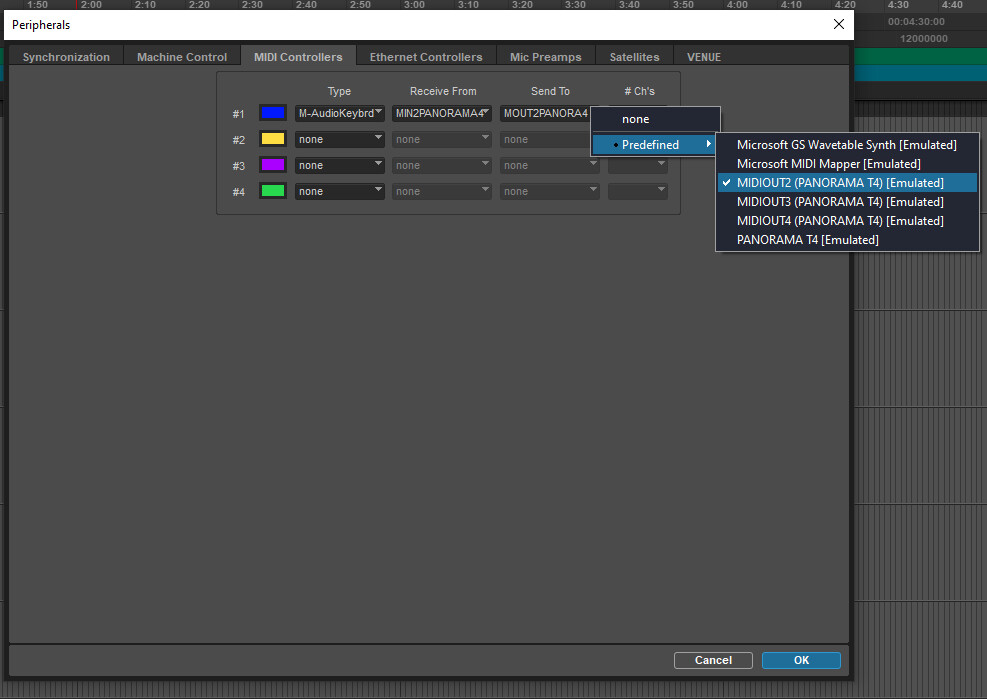
ProTools_T-series_win
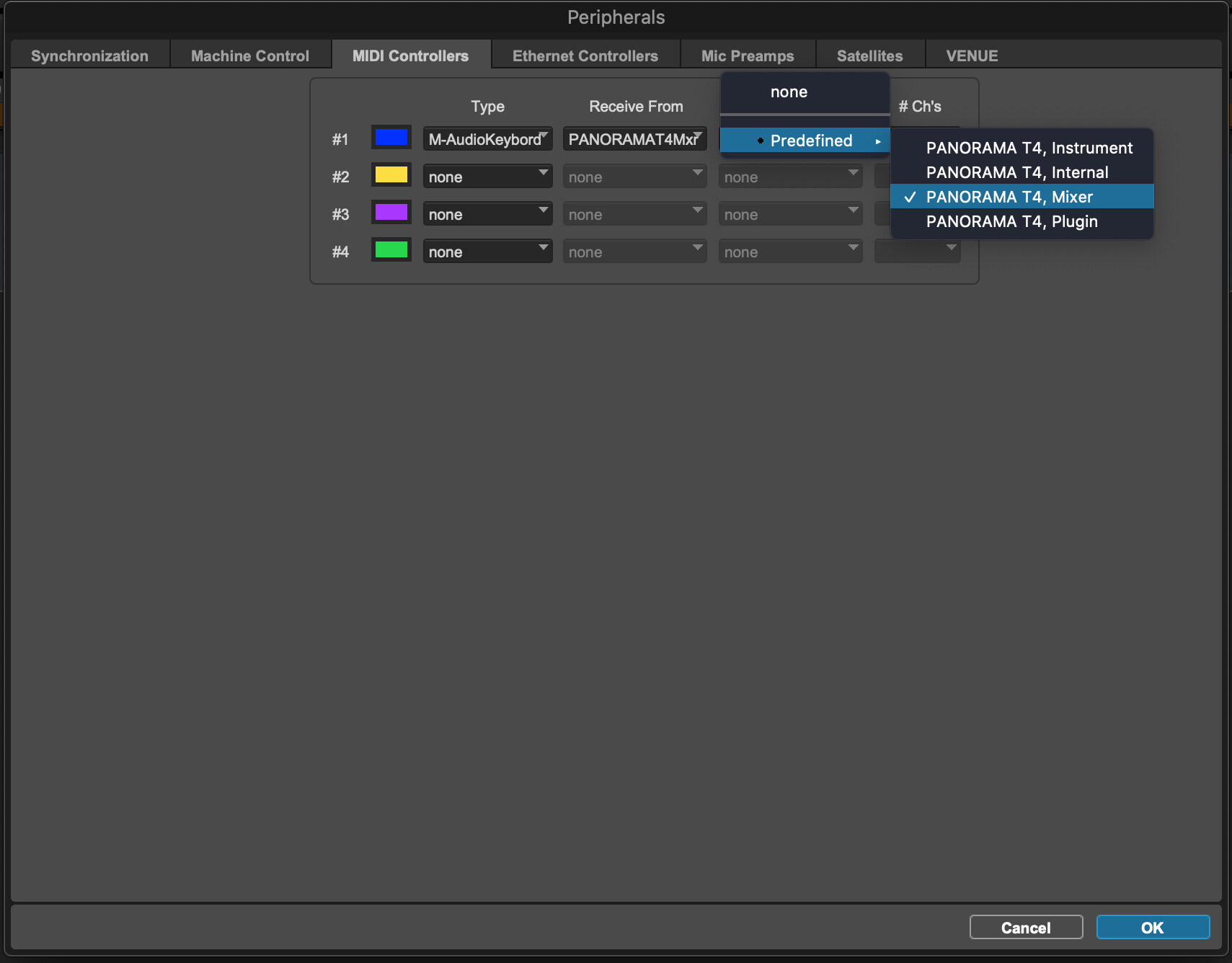
ProTools_T-series_mac
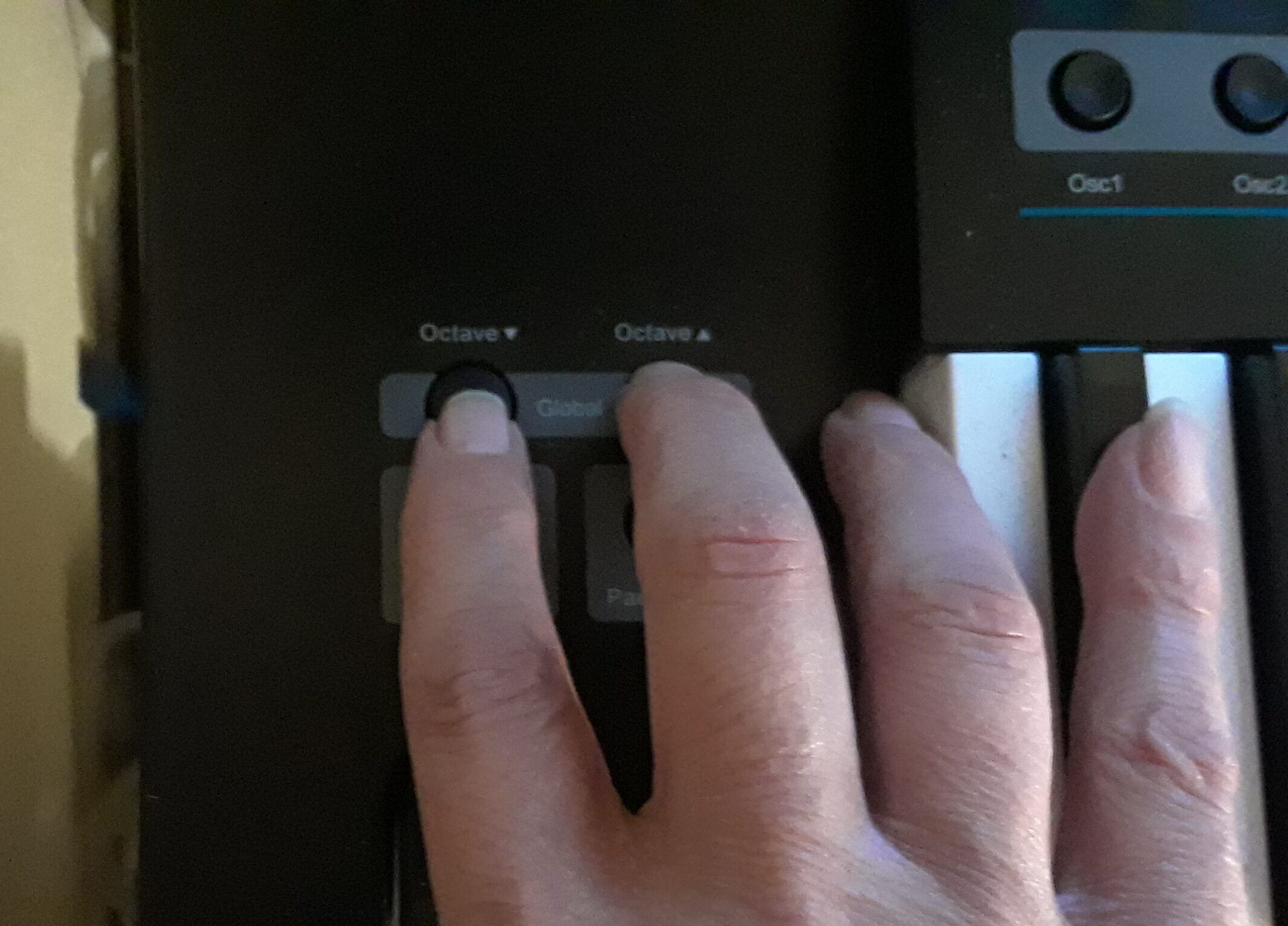
press-octave-scaled-e1632423539670
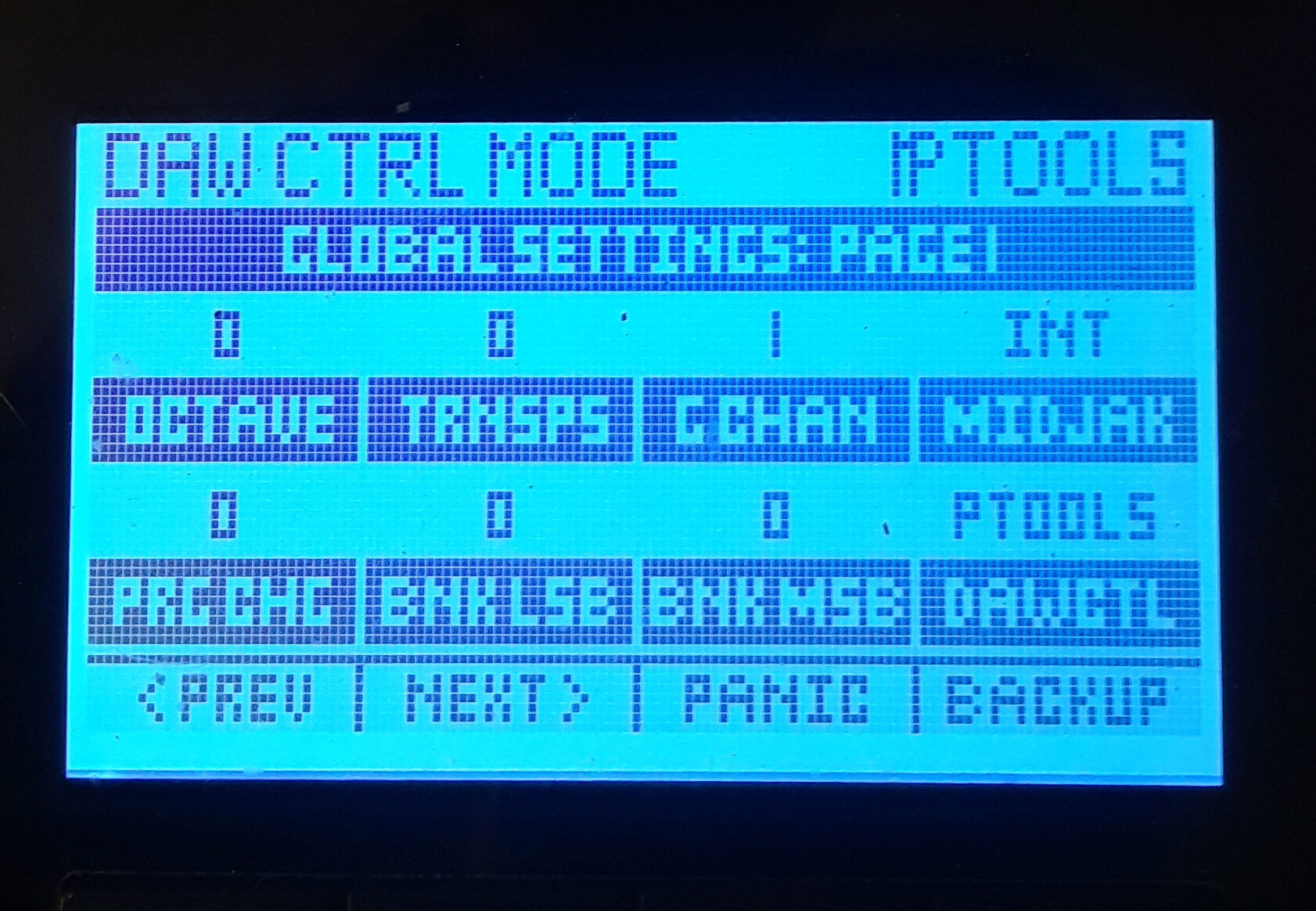
PTOOLS_DAWCTL-e1632428576587
Features
Mixer Mode
Once configured you will be able to control Mixer channels in banks of 8.
- Faders 1-8 = Channel Volume for the selected bank.
- Fader 9 = Master Volume.
- Buttons 1-8 = Select, Record Arm, Mute or Solo.
- Button 9 = Select function for buttons 1-8.
- [Track-/+] = Select previous or next channel.
- [Shift]+[Track-/+] = Move to the previous or next bank of 8 channels.
Transport Buttons
The transport buttons perform the following functions:
| Button | Function |
|---|---|
| Loop | Used in conjunction with other buttons to activate loop functions |
| << | Rewind |
| >> | Fast Forward |
| Stop | Stop playback |
| Play | Start playback |
| Record | Arm the transport for recording |
The 'Loop' button provides additional options and gives access to the following functions:
| Buttons | Function |
|---|---|
| Loop + Play | Loop Playback |
| Loop + Record | Loop Record |
| Loop + Stop | Undo |
| Loop + RW | Go to start |
| Loop + FF | Go to end |
Note: The loop button has no function when pressed by itself.
Controlling Instrument Parameters
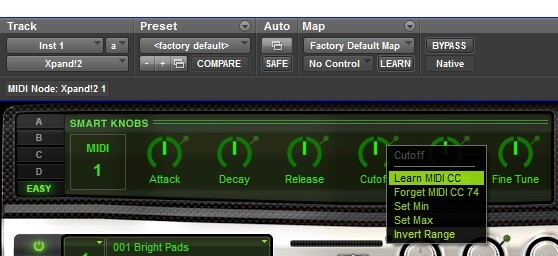
It’s possible to assign the controls to instrument parameters in Pro Tools, when the T-series controller is in Internal Mode. Many of the AIR instruments and third-part plug-ins have a ‘Learn’ function.
For example, if you right-click on a parameter in the ‘XPand 2’ plug-in you will see menu with assignment options, as shown in this image. Select ‘Learn CC’ then move a fader or encoder on your T-series keyboard. That parameter should now be controlled by the pot.
PT_MIDI_learn
Troubleshooting
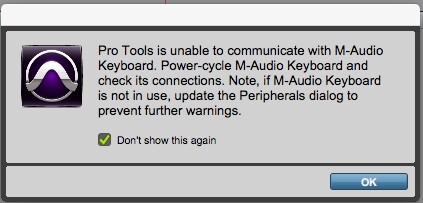
If you encounter the warning shown in in this image, it is because the Impact series keyboards are not M-Audio keyboards. Simply click the 'Don't show this again' option and then click 'OK'.
PT_warning
Tags: Panorama T4, Panorama T6, Pro Tools