
PANORAMA CS12: REAPER TROUBLESHOOTING
If your Panorama CS12 is stubbonly not connecting to Reaper or resisting moving past the bootup display, do not dispair. Configurations that should have been set during the installation procedure are not always set as they should. Thankfully there are not many and generally it's straight forward to correct.
CS12 IS NOT CONNECTING TO CUBASE... NOTHING WORKS (MAC ONLY).
The symptoms can also be described as "CS12 does not work with Reaper". It looks pretty bad but it's usually because the “ControlCore would like to receive keystrokes from any application” message did not appear in step 6. of the setup instructions, or another application is blocking key strokes to ControlCore.
To fix this, go to //Applications/Nektar/ControlCore. You should see an app called 'ControlCore Panel'. If you see that double-click on it (if not, run the latest ControlCore installer again). If the ControlCore panel says 'Start ControlCore', click the button. If it says 'Stop ControlCore', then close that app. You will need to activate the Input Monitoring options for ControlCore and Cubase. Please follow these steps:
- Click on the Apple logo in the upper-left corner of your screen.
- Select ‘System Settings’
- In the window that appears, go to ‘Privacy and Security’
- Find the ‘Input Monitoring’ category and click on it.
- Activate the options for ‘ControlCore’, ‘Nektarine’ and ‘Cubase’.
- It will ask for your password and recommend restarting those applications, if they are running.
If you do not see those applications listed, you can click the ‘+’ button at the bottom of the window to add them. When you click the ‘+’ button it will bring up a finder window. You will find ‘ControlCore’ in the following location:
//Library/Application Support/Nektar/ControlCore
You will find Nektarine in the following location:
//Applications/Nektar/Nektarine
You will find Reaper in //Applications
If you needed to add these, then we recommend restarting your computer after doing so. When the computer has finished starting up, you should see the ControlCore link symbol on the CS12’s display is green. If you see that, the Reaper welcome screen should appear on the CS12's display when you open a Reaper project.
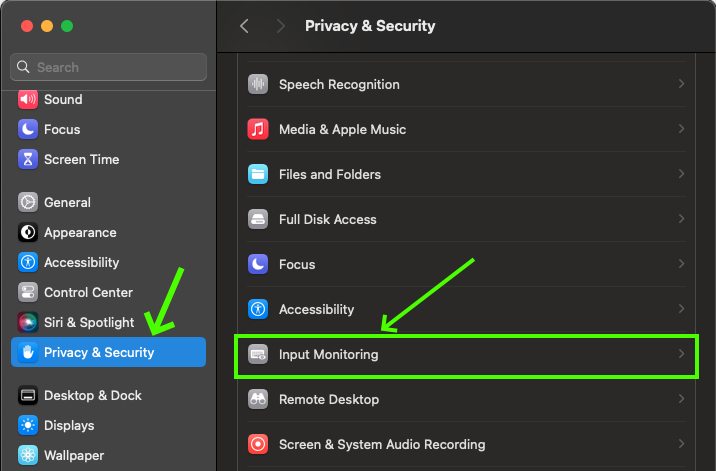
MacOS_Input_monitoring-01
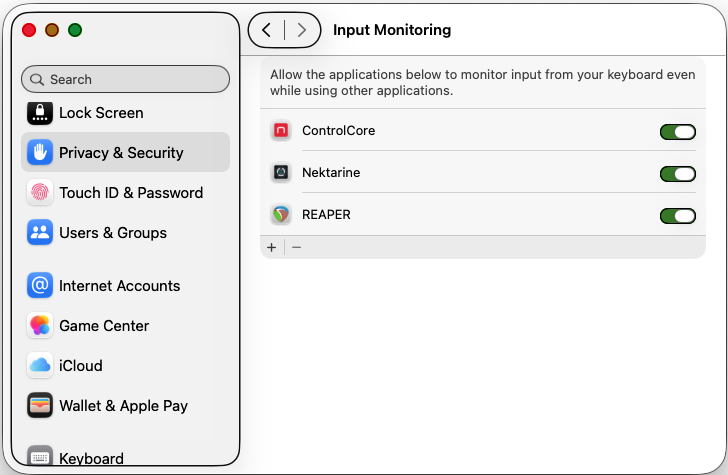
CS12_Reaper_input_monitoring
INPUT MONITORING IS ENABLED BUT CS12 IS STIL NOT RESPONDING
Applications that intercept key stroke messages, such as Karabiner Elements, by default will intercept any messages intended for Panorama CS12.
- In Karabinger Elements go to the 'Devices' page and locate Panorama CS12 in the list.
- Turn off the 'Modify Events' option for CS12.
- Launch Reaper following to verify it's now working. If not, restart your system and check again.
If you are using a different application designed to intercept key stroke events look for similar options to enable or disable interception to specific devices.
CS12 STILL NOT CONNECTING TO REAPER (MacOS/WIN)
- Make sure you have Reaper 7 installed. The integration does not work with lower versions.
- If you installed ControlCore before Reaper, contact us at [email protected]. Reaper will not be able to find the ControlCore files needed and reinstalling does not solve the problem.
- Try different USB cables. You may have been using your USB cable for a long time and it works with everything else, however try different cables anyway. It's rare but not uncommon that the most stubbon situations are finally resolved by changing a cable.
- Try different USB ports. If you have a USB hub, try both connecting to it and connecting directly to ports on your computer.
- If ControlCore was installed before you installed Reaper, it can cause Reaper to operate as a portable installation. In that case you will need to remove Reaper's folder structure and install it again. Please follow these steps:
MacOS:
- Close any applications you have open
- Open the Applications folder in a finder window
- Open the 'View' menu at the top of your screen.
- Select 'Sort by', then select 'Date Added'
- Now, delete the files and folders which were created in Applications after you ran Reaper for the first time.
- Open the 'Go' menu at the top of the screen
- With the Go menu open, hold the Alt/Option key on your keyboard
- Select 'Library' from the Go menu
- In the finder window, open the 'Application Support' folder
- Find the 'REAPER' folder and delete it.
- Empty the trash.
- Start Reaper
- Quit Reaper
- Run ControlCore installer
- Start Reaper again.
Windows:
- Open a File Explorer window.
- Navigate to C:\Program Files
- Find the 'REAPER (x64)' folder in that directory and delete it.
- Navigate to ‘C:\Users\<your user name>\AppData\Roaming‘ (note this is normally a hidden directory, follow the instructions on this page to unhide: Show hidden files).
- Find the ‘REAPER’ folder in that directory and delete it.
- Install Reaper again
- Start Reaper
- Quit Reaper
- Run the ControlCore installer
- Start Reaper again
Nektarine-plugin-format-select
NETARINE MAPPING NOT WORING IN REAPER
Map files created in Nektarine can generally be read by ControlCore and will therefore work in Reaper. However there are situations where it doesn't work as intended so here are some of the key issues to be aware of.
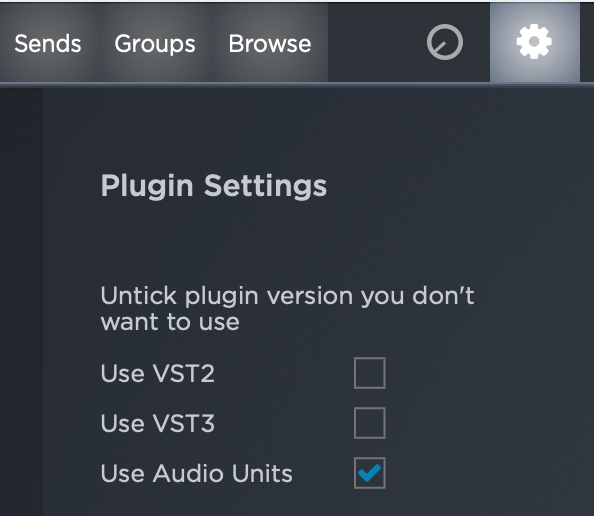
- Make sure the plugin format you map in Nektarine is the same as your DAW. Some plugins are named the same regardless of format however many are not so AU plugins will be named differently from VST3 plugins etc. It's a good idea to stick to one format where possible and disable VST and AU plugins formats in Nektarine's Settings menu so only the prefered format plugins can be selected.
- Start by saving a map file from Reaper first, then open the plug-in in Nektarine. Nektarine is capable of mapping plugins with thousands of parameters and Reaper is currently limited to about 1000. By saving the map file first in Reaper, Nektarine is aware of the diffrence and ensures the final map file can be read by both. You can find more information about creating and saving map files in the Nektarine manual. https://support.nektartech.com/nektarine/control/
- If the mapping you created in Nektarine is not loaded when you load the plug-in in Reaper, first check there is a map file for the plug-in in .../Documents/Nektar/Nektarine/Mapping Files/Inserts. If you don't see the .npm map file there, try saving the map from Nektarine again. If the map file still doesn't appear, there may be a folder permissions issue preventing Nektarine from writing files to that directory. In that case, move the 'Nektar' folder out of .../Documents (to your desktop or somewhere you can find it later). When you restart Nektarine, the folder is created again with factory default settings which may resolve the issue.
Nektarine-plugin-format-select
Tags: Reaper
