
Digital Performer Setup and Troubleshooting: Panorama T Series
There are no files to be installed, in order to use the Panorama T-series with Digital Performer. The T-series controller will emulate a MCU controller, for Mixer and Transport functions.
Setup
Please make sure that you have updated your controller's firmware and then follow these steps:
- Plug-in your Panorama T-series controller and make sure it’s switched on (if you didn’t do so already).
- Launch Digital Performer and create a Project, or open an existing one.
- Go to the ‘Setup’ menu.
- Select ‘Control Surface Setup…’.
- Click the ‘+’ button in the upper right corner. (Image 1)
- For ‘Driver’ select ‘Mackie Control’.
- For ‘MIDI Input’, select ‘MIDIIN2 (PanoramaT*)-1’ in Windows or ‘PanoramaT* Mixer-1’ in OS X.
- For ‘MIDI Output’, select ‘ MIDIOUT2 (PanoramaT*)’ in Windows or ‘ PanoramaT* Mixer’ in OS X. (Images 2 and 3)
- Click ‘OK’ to close the Control Surface Setup window.
- Press both [Octave] buttons on the T-series for the Global menu. (Image 4)
- Turn the encoder labeled 'DAWCTL' to select 'MCU'. (Image 5)
- Press the [Mixer] button.
- Press the [Play] button on the T-series controller.
- Playback should now start in Digital Performer.
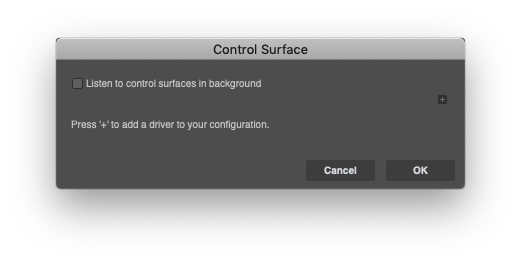
Image1
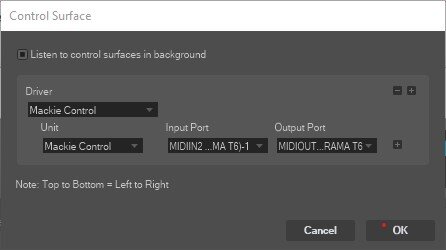
Image2-1
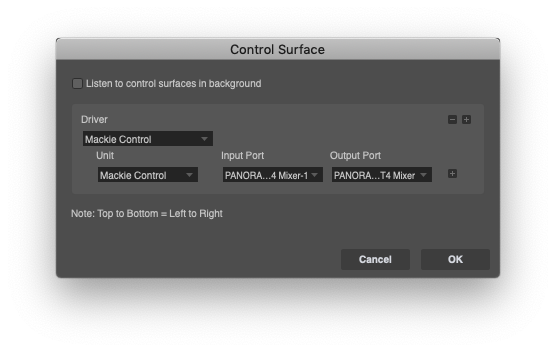
Image3
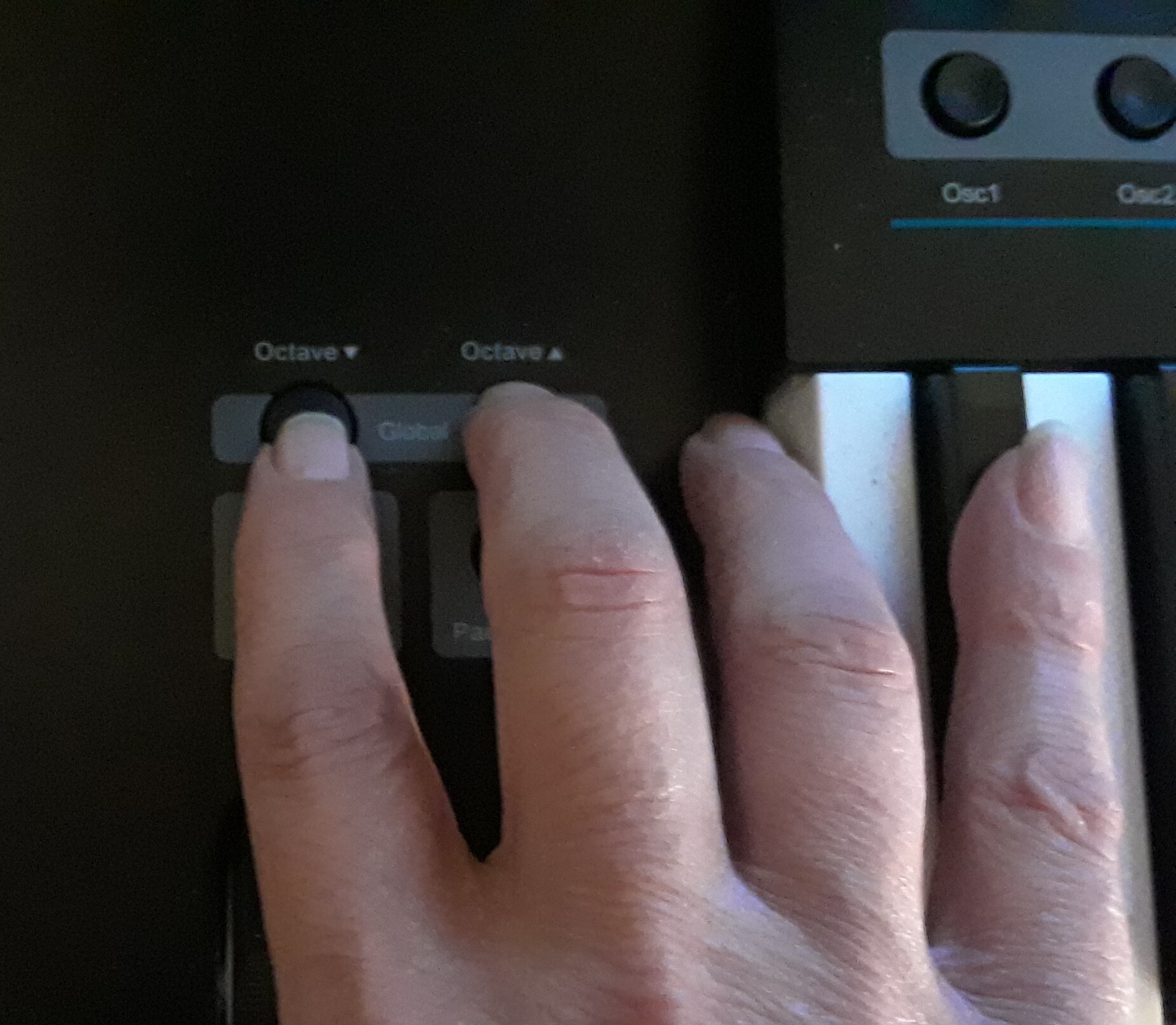
Image4

Image5
Features
Once configured you will be able to control Mixing Board channels in banks of 8.
- Faders 1-8 - Volume for channels 1-8 in the current bank.
- Buttons 1-8 - Mute for channels 1-8 in the current bank.
- Encoders 1-8 - Pan for channels 1-8 in the current bank.
- Fader 9 - Master Volume.
- [Shift]+[Track-/+] - Move to the previous or next bank of 8 channels.
- [<<] - Rewind.
- [>>] - Fast forward.
- [Stop] - Stop playback/recording.
- [Play] - Start playback.
- [Record] - Start recording.
Tags: Digital Performer, Panorama T4, Panorama T6