SOLUTIONS FOR ISSUES WITH PANORAMA CS12 AND LOGIC PRO
If your Panorama CS12 is stubbonly not connecting to Logic Pro or resisting moving past the bootup display, do not dispair. Configurations that should have been set during the installation procedure are not always set as they should. Thankfully there are not many and generally it’s straight forward to correct. For many, simply selecting ‘Rebuild Defaults’ in Logic Pro/Control Surfaces/Rebuild Defaults solves many problems. This solution is describe below but if it doesn’t help, please start from the top.
CS12 IS NOT CONNECTING TO LOGIC PRO… NOTHING WORKS.
The symptoms can also be described as “CS12 does not work with Logic Pro”. It looks pretty bad but it’s usually because the “ControlCore would like to receive keystrokes from any application” message did not appear in step 6. of the setup instructions, or another application is blocking key strokes to ControlCore.
To fix this, go to //Applications/Nektar/ControlCore. You should see an app called ‘ControlCore Panel’. If you see that double-click on it (if not, run the latest ControlCore installer again). If the ControlCore panel says ‘Start ControlCore’, click the button. If it says ‘Stop ControlCore’, then close that app. You will need to activate the Input Monitoring options for ControlCore and Logic. Please follow these steps:
- Click on the Apple logo in the upper-left corner of your screen.
- Select ‘System Settings’
- In the window that appears, go to ‘Privacy and Security’
- Find the ‘Input Monitoring’ category and click on it.
- Activate the options for ‘ControlCore’, ‘Nektarine’ and ‘Logic’.
- It will ask for your password and recommend restarting those applications, if they are running.
If you do not see those applications listed, you can click the ‘+’ button at the bottom of the window to add them. When you click the ‘+’ button it will bring up a finder window. You will find ‘ControlCore’ in the following location:
//Library/Application Support/Nektar/ControlCore
You will find Nektarine in the following location:
//Applications/Nektar/Nektarine
You will find Logic in //Applications
If you needed to add these, then we recommend restarting your computer after doing so. When the computer has finished starting up, you should see the ControlCore link symbol on the CS12’s display is green. If you see that, the Logic welcome screen should now appear on the CS12’s display when you open a project in Logic.
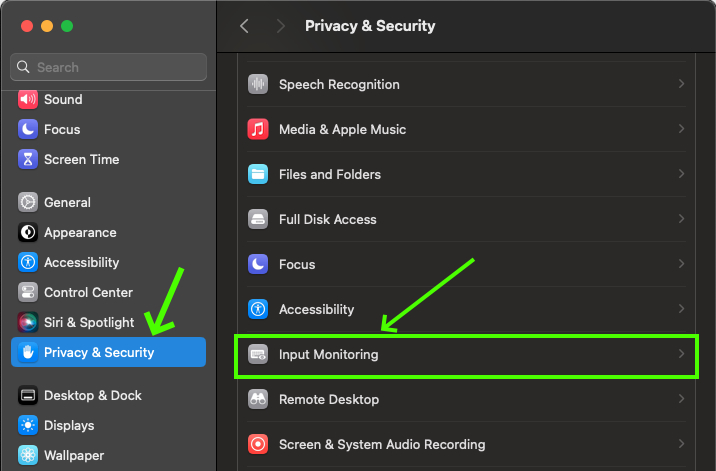
Privacy and Security
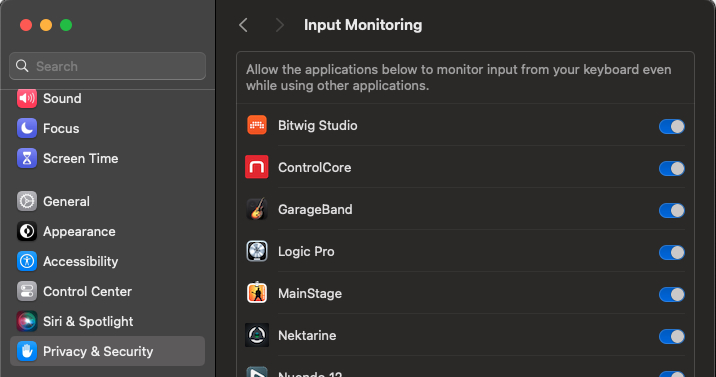
Input Monitoring
INPUT MONITORING IS ENABLED BUT CS12 IS STIL NOT RESPONDING
Applications that intercept key stroke messages, such as Karabiner Elements, by default will intercept any messages intended for Panorama CS12.
- In Karabinger Elements go to the ‘Devices’ page and locate Panorama CS12 in the list.
- Turn off the ‘Modify Events’ option for CS12.
- Launch Logic Pro following to verify it’s now working. If not, restart your system and check again.
If you are using a different application designed to intercept key stroke events look for similar options to enable or disable interception to specific devices.
THE CONNECT ICON ON THE CS12 DISPLAY IS GREEN BUT CS12 IS STILL NOT RESPONDING
If the connect icon is green, it means input monitoring is set up correctly and CS12 is connected to ControlCore. The next step is checking that Logic Pro is seeing CS12 as a control surface.
- Go to the Logic Pro Menu and select Control Surfaces>Settings.
- In the pop-up window, select the ‘MIDI Controllers’ tab.
- Locate Panorama CS12 in the list and make sure it’s ticked.
Go to the next section if that didn’t solve the problem.
AFTER CHECKING ALL OF THE ABOVE, CS12 DISPLAY IS STILL STUCK ON THE DEFULT SCREEN
To resolve this issue first try the ‘Rebuild Defaults’ option in Logic. Please follow these steps:
- Open the ‘Logic Pro’ menu
- Select ‘Control Surfaces’
- Select ‘Rebuild defaults’
If you don’t see that option, you will need to ‘Enable Complete Features’ on the ‘Advanced’ page of Logic’s
settings menu.
If you are still having trouble after that, clear out Logic’s control surface settings. Note, that doing so will
cause Logic to forget control assignments made with Logic’s MIDI learn function (this doesn’t affect Nektar plug-ins maps).
- Close any applications you have open and open a Finder window.
- Open the ‘Go’ menu at the top of the screen.
- With the Go menu open, hold the Alt/Option key on your keyboard and select ‘Library’ from the Go menu.
- In the Finder window, open the ‘Preferences’ folder.
- Find com.apple.logic.pro.cs and move it to your desktop or somewhere you can find it later.
- Start Logic.
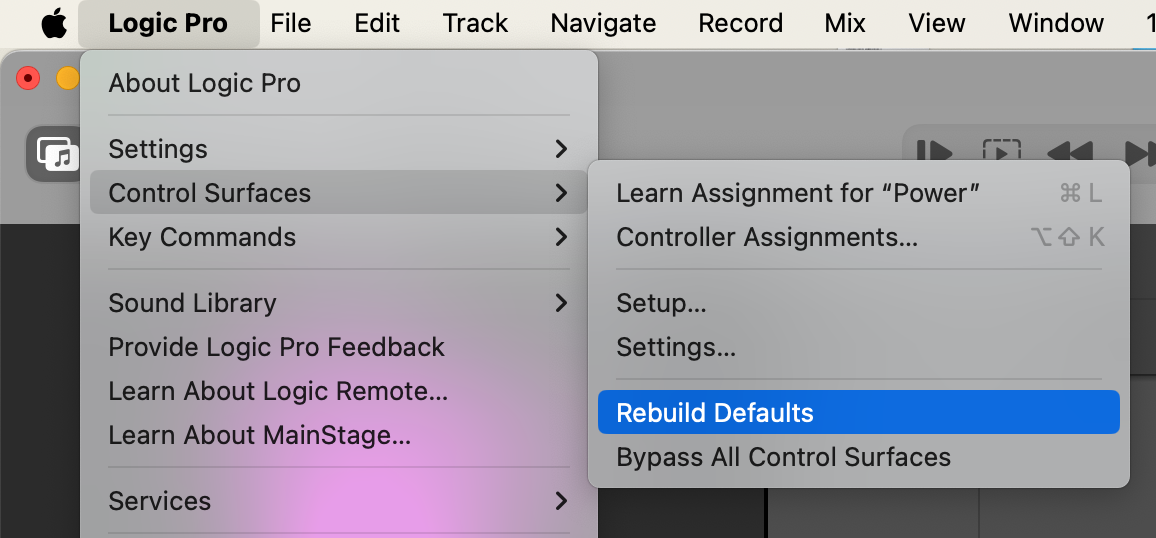
Logic-Pro-Rebuild-Defaults-menu
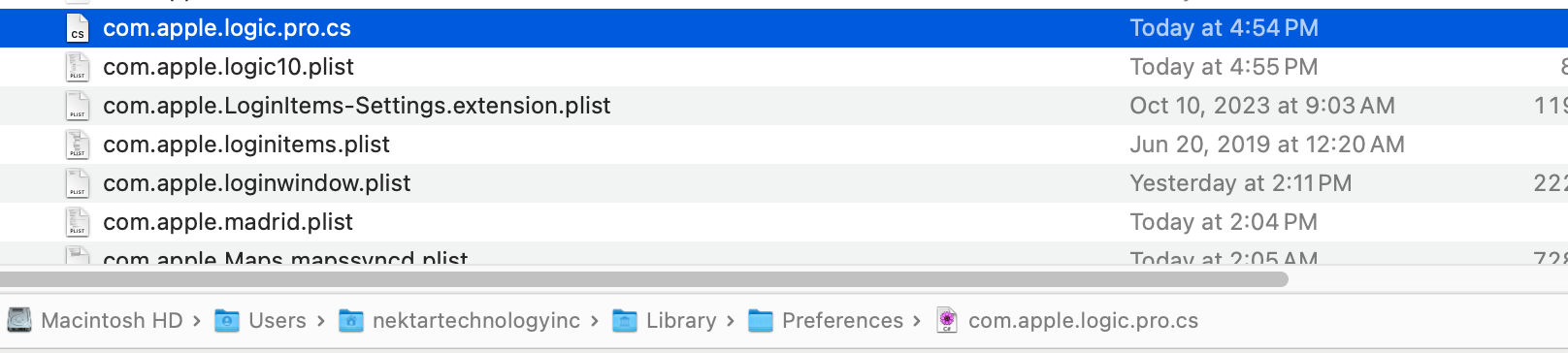
Logic-Pro-CS-preference-file
STRANGE, INCONSISTENT OR “ODD” CS12 BEHAVIOR
Control surface settings can from time to time get “muddled'” through unintentional use of Logic Pro’s learn menu or general corruption in use. The exact symptoms can be extremely varied ranging from parameters not displayed correctly when controlled to specific functions not working at all. If CS12 is not working as it should, Rebuilding Defaults will fix it most of the time:
- Open the ‘Logic Pro’ menu
- Select ‘Control Surfaces’
- Select ‘Rebuild defaults’
If you don’t see that option, you will need to ‘Enable Complete Features’ on the ‘Advanced’ page of Logic’s
settings menu.
Logic-Pro-Rebuild-Defaults-menu
Nektarine mapping not working in Logic Pro
Map files created in Nektarine can generally be read by ControlCore and will therefore work in Logic Pro. However there are situations where it doesn’t work as intended so here are some of the key issues to be aware of.
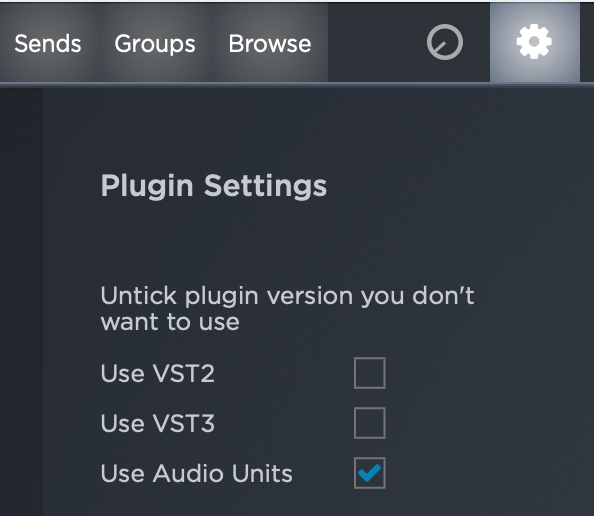
- Make sure the plugin format you map in Nektarine is the same as your DAW. Since Logic Pro only hosts AU plugins it’s a good idea to disable VST and VST3 plugins formats in Nektarine’s Settings menu so only AU plugins can be selected. Many developers ensure that format versions are identical but some don’t.
- Start by saving a map file from Logic first, then open the plug-in in Nektarine. Nektarine is capable of mapping plugins with thousands of parameters but in Logic Pro we have a limit of 256. By saving the map file first in Logic Pro, Nektarine is aware of the diffrence and ensures the final map file can be read by both. You can find more information about creating and saving map files in the Nektarine manual. https://support.nektartech.com/nektarine/control/
- If the mapping you created in Nektarine is not loaded when you load the plug-in in Logic, first check there is a map file for the plug-in in …/Documents/Nektar/Nektarine/Mapping Files/Inserts. If you don’t see the .npm map file there, try saving the map from Nektarine again. If the map file still doesn’t appear, there may be a folder permissions issue preventing Nektarine from writing files to that directory. In that case, move the ‘Nektar’ folder out of …/Documents (to your desktop or somewhere you can find it later). When you restart Nektarine, the folder is created again with factory default settings which may resolve the issue.