PANORAMA CS12: CUBASE TROUBLESHOOTING
If your Panorama CS12 is stubbonly not connecting to Cubase/Nuendo or resisting moving past the bootup display, do not dispair. Configurations that should have been set during the installation procedure are not always set as they should. Thankfully there are not many and generally it’s straight forward to correct.
CS12 IS NOT CONNECTING TO CUBASE… NOTHING WORKS (MAC ONLY).
The symptoms can also be described as “CS12 does not work with Cubase”. It looks pretty bad but it’s usually because the “ControlCore would like to receive keystrokes from any application” message did not appear in step 6. of the setup instructions, or another application is blocking key strokes to ControlCore.
To fix this, go to //Applications/Nektar/ControlCore. You should see an app called ‘ControlCore Panel’. If you see that double-click on it (if not, run the latest ControlCore installer again). If the ControlCore panel says ‘Start ControlCore’, click the button. If it says ‘Stop ControlCore’, then close that app. You will need to activate the Input Monitoring options for ControlCore and Cubase. Please follow these steps:
- Click on the Apple logo in the upper-left corner of your screen.
- Select ‘System Settings’
- In the window that appears, go to ‘Privacy and Security’
- Find the ‘Input Monitoring’ category and click on it.
- Activate the options for ‘ControlCore’, ‘Nektarine’ and ‘Cubase’.
- It will ask for your password and recommend restarting those applications, if they are running.
If you do not see those applications listed, you can click the ‘+’ button at the bottom of the window to add them. When you click the ‘+’ button it will bring up a finder window. You will find ‘ControlCore’ in the following location:
//Library/Application Support/Nektar/ControlCore
You will find Nektarine in the following location:
//Applications/Nektar/Nektarine
You will find Cubase in //Applications
If you needed to add these, then we recommend restarting your computer after doing so. When the computer has finished starting up, you should see the ControlCore link symbol on the CS12’s display is green. If you see that, the Cubase or Nuendo welcome screen should now appear on the CS12’s display when you open a project in Cubase.
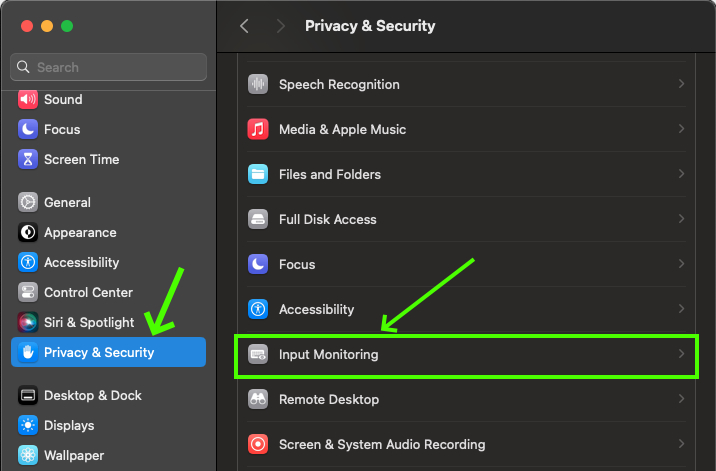
Privacy and Security
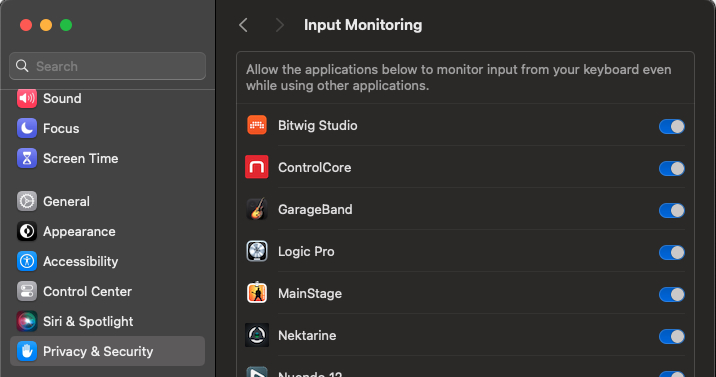
Input Monitoring
INPUT MONITORING IS ENABLED BUT CS12 IS STIL NOT RESPONDING
Applications that intercept key stroke messages, such as Karabiner Elements, by default will intercept any messages intended for Panorama CS12.
- In Karabinger Elements go to the ‘Devices’ page and locate Panorama CS12 in the list.
- Turn off the ‘Modify Events’ option for CS12.
- Launch Cubase following to verify it’s now working. If not, restart your system and check again.
If you are using a different application designed to intercept key stroke events look for similar options to enable or disable interception to specific devices.
PANORAMA CS12 STILL DOESN’T CONNECT TO CUBASE (MacOS & Win)
If the CS12’s display still shows the startup screen (with the CS12 logo) when you open a project in Cubase, please check the following directory:
- Cubase – …\Documents\Steinberg\
Cubase\MIDI Remote\Driver Scripts\Local\Nektar - Nuendo – …\Documents\Steinberg\
Nuendo\MIDI Remote\Driver Scripts\Local\Nektar
If you don’t see a ‘Panorama CS12’ folder in that location, please run the latest Control Core installer again. If you encounter a message which indicates that Cubase or Nuendo were not found on your system, please go to the next
With the ‘Panorama CS12’ folder present in the location detailed above, next check that the ‘C’ symbol in the upper-right corner of the display is green, not grey. If it’s grey, please check that ControlCore is running in the background:
Windows:
- Go to C:\Program Files\Nektar\ControlCore
- Double-click on ControlCore Panel.exe
- If it says, ‘Start ControlCore’ click on it so that ControlCore starts, then quit and restart Cubase. If it says ‘Stop ControlCore’ it means ControlCore is already running in the back ground.
MacOS:
- Go to //Applications/Nektar/
ControlCore - Double-click on ControlCore Panel
- If it says, ‘Start ControlCore’ click on it so that ControlCore starts, then quit and restart Cubase. If it says ‘Stop ControlCore’ it means ControlCore is already running in the back ground.
If you are using the Cubase or Nuendo on a Windows based system, make sure that the “Use Device ‘WinRT MIDI'” is not activated in the MIDI Port settings. Go to the Studio Setup menu on the ‘MIDI Port Setup’ page. Studio>Studio Setup>MIDI Port Setup
If the Fader and Pan pot do not control channel volume but other functions are working, please check that the “Sync Selection in Project and MixConsole” is ticked in the Cubase Settings/Preferences menu:
- Windows – Edit>Preferences>Editing>
Project & Mix Console - MacOS – Cubase>Settings>Editing>
Project & Mix Console
RESOLVING UNEXPECTED CS12 BEHAVIOR WITH CUBASE (MacOS & Win)
A file called ‘Nektar_Panorama_CS12_**_
- Cubase – …\Documents\Steinberg\
Cubase\MIDI Remote\User Settings - Nuendo – …\Documents\Steinberg\
Nuendo\MIDI Remote\User Settings
This file contains settings for assignments made with the MIDI Remote Mapping Assistant which can be the cause of the problems you experience. Quit Cubase or Nuendo and move the User Sttings folder to the desktop. Launching Cubase will restore the CS12’s default settings and the file will be created again when you next quit Cubase.
If you are still having trouble at that point, then you can return the Cubase folders that you moved to your desktop, to restore your original settings. Note, Cubase will have created a new folder, so you will need to delete the new folder before you can put the original folder back.
NETARINE MAPPING NOT WORKING IN CUBASE
Map files created in Nektarine can generally be read by ControlCore and will therefore work in Cubase. However there are situations where it doesn’t work as intended so here are some of the key issues to be aware of.
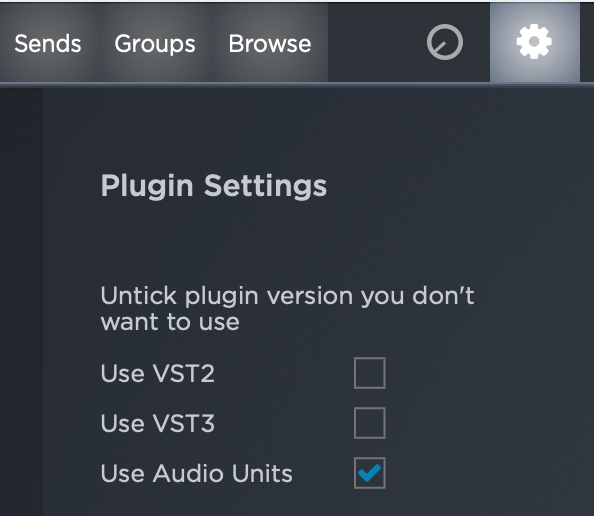
- Make sure the plugin format you map in Nektarine is the same as your DAW. Since Cubase VST3 plugins it’s a good idea to disable VST and AU plugins formats in Nektarine’s Settings menu so only VST3 plugins can be selected. Many developers ensure that format versions are identical but some don’t.
- Start by saving a map file from Cubase first, then open the plug-in in Nektarine. Nektarine is capable of mapping plugins with thousands of parameters and Cubase is currently limited to about 1000. By saving the map file first in Cubase, Nektarine is aware of the diffrence and ensures the final map file can be read by both. You can find more information about creating and saving map files in the Nektarine manual. https://support.nektartech.com/nektarine/control/
- If the mapping you created in Nektarine is not loaded when you load the plug-in in Cubase, first check there is a map file for the plug-in in …/Documents/Nektar/Nektarine/Mapping Files/Inserts. If you don’t see the .npm map file there, try saving the map from Nektarine again. If the map file still doesn’t appear, there may be a folder permissions issue preventing Nektarine from writing files to that directory. In that case, move the ‘Nektar’ folder out of …/Documents (to your desktop or somewhere you can find it later). When you restart Nektarine, the folder is created again with factory default settings which may resolve the issue.